Docs › Get started › Signing in
Signing in
How the editor signs in through your browser, the code you can paste instead, how long a session lasts, and how to sign out.
On this page
- Where you can start signing in
- Signing in through the browser
- How it reaches the editor
- Signing in with a code
- When the editor offers it
- Paste the code
- Deep links
- How long a session lasts
- Signing out
- Sign In with a Token, for gateway operators
- Signing in from the CLI
- If something goes wrong
AstraCode signs in through your browser. You approve the sign-in on astracode.io, and the editor receives a session it keeps in your operating system's keychain. You need to be signed in for chat, the agent, completions and dictation.
Where you can start signing in
- The sign-in window. While you are signed out, AstraCode covers the editor with a window offering Log In and Sign Up. It comes back whenever your session ends.
- The command palette. AstraCode: Sign In, or AstraCode: Sign Up to create an account. Both use the same flow; Sign Up shows the sign-up page to a visitor who is not signed in on the site.
- The chat. While you are signed out, the send button reads Log in. Press it, or press Enter in the box.
- AstraCode Settings. General shows Not signed in with a Sign in button.
- A link from the site. The dashboard's sign-in step opens the editor with a link, which starts the same flow. See Deep links below.
Your own API key does not replace signing in. With a key set and no session, the sign-in window still shows. See Bring your own key.
Signing in through the browser
- Choose Log In (or run AstraCode: Sign In). A notification says Signing in to AstraCode in your browser… and your browser opens.
- If you are not signed in on the site, sign in there, or create your account. The site asks for your email and sends you a code. If your email is not confirmed yet, it asks you to confirm it first.
- The page Sign in to AstraCode desktop shows the account the editor will use. Choose Sign in. To use a different account, choose or sign in with another account.
- The browser says All set! and hands you back to the editor. The editor says Signed in to AstraCode. You can close the browser tab.
Only choose Sign in on that page if you just started signing in from AstraCode yourself. The page says the same.
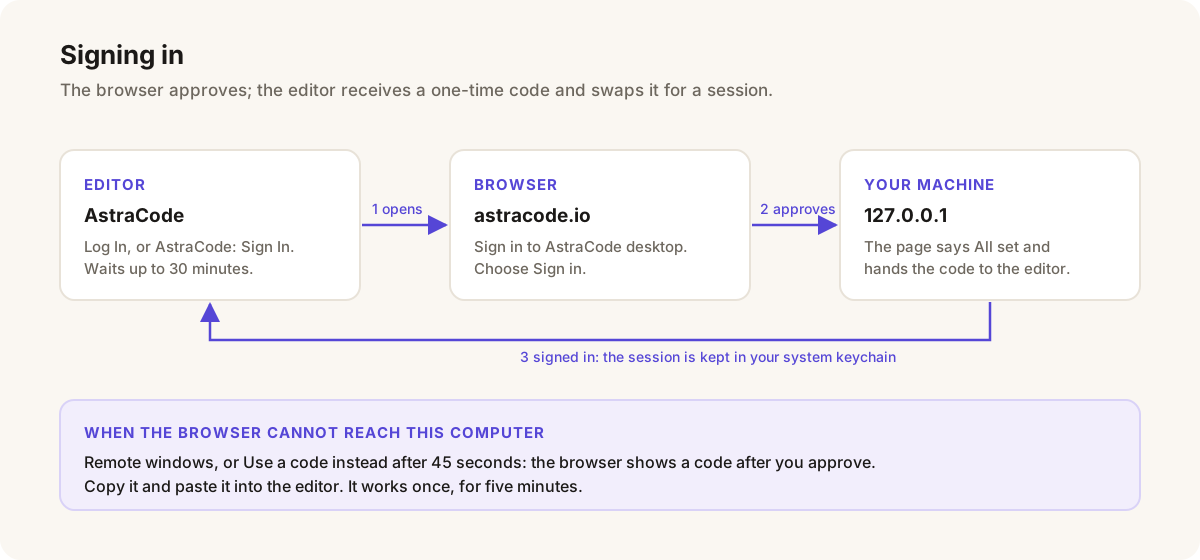
How it reaches the editor
While you sign in, the editor listens on a temporary port on your own machine, http://127.0.0.1:<port>/callback. When you approve, the browser sends a one-time code to that address, and the editor swaps it for a session. The listener exists only while a sign-in is in progress. The code cannot be used by anything else: it only works together with a secret that never leaves the editor.
The editor waits up to 30 minutes for you to finish in the browser, long enough to create an account. To stop waiting, choose Cancel on the Signing in to AstraCode in your browser… notification.
Choosing Cancel on the browser page does not tell the editor. It keeps waiting; cancel the notification in the editor too, then start again.
Signing in with a code
Sometimes the browser cannot reach the editor's temporary port: the editor is running on another computer, or something on your machine blocks 127.0.0.1. Then you sign in with a code instead: the browser shows a code and you paste it into the editor.
When the editor offers it
- In a remote window, such as Remote SSH, WSL, Codespaces or a dev container, Log In goes straight to the code flow, because the browser on your computer can never reach a port on the remote machine.
- After 45 seconds without an answer from the browser, a notification says Still waiting for your browser. If it cannot reach this computer, sign in with a code instead. Choose Use a code instead.
- When the wait times out, the warning offers Use a code instead beside Sign in again.
- When sign-in fails, the warning offers Use a code instead beside Try again.
Paste the code
- Choose Use a code instead, or choose Log In in a remote window. Your browser opens and the editor shows a box titled Sign in to AstraCode: Approve the sign-in in your browser, then paste the code it shows.
- In the browser, sign in if asked, then choose Sign in on Sign in to AstraCode desktop.
- The page Paste this code into AstraCode shows a code. Choose Copy.
- Paste it into the box in the editor and press Enter. Spaces and line breaks are removed for you. The editor says Signed in to AstraCode.
The box stays open when you switch to the browser, so you can copy and come back. Press Escape to give up without signing in.
A code works once, for five minutes Paste it straight away, and only into an AstraCode you started yourself, just now. AstraCode never asks for this code by email, chat or on another website. If the code is refused, the editor says why and adds A code works once, for five minutes. Choose Try again for a fresh one.
The AstraCode CLI has the same flow: astracode-agent login --code. See AstraCode CLI.
Deep links
Two links open AstraCode and start signing in, which is how the website's buttons hand you to the editor:
| Link | What it does |
|---|---|
astracode://astracode.astracode-ai/signin | Runs AstraCode: Sign In. |
astracode://astracode.astracode-ai/signup | Runs AstraCode: Sign Up. |
Both do something only while you are signed out. Signed in, the link just brings the editor to the front.
How long a session lasts
- A session lasts 36 hours from when it was issued.
- The editor renews it for you. When it starts, and every 30 minutes after, it renews a session that is within 6 hours of running out. As long as you open AstraCode now and then, you stay signed in.
- Being offline never signs you out. If a renewal cannot reach AstraCode, the editor keeps your session and tries again later.
- You are signed out only when AstraCode refuses the session: it ran out, or was ended on the site. The sign-in window then comes back, and a request shows a card titled You are signed out.
The session is stored in your operating system's keychain (Keychain on macOS, Credential Manager on Windows, the Secret Service on Linux), never in a settings file.
Signing out
- Open AstraCode Settings: run AstraCode: Open Settings.
- On General, choose Log out in the account panel at the top.
- Confirm Log Out in Log out of AstraCode?. The editor says Logged out. and the sign-in window returns.
There is no sign-out command in the command palette; the Settings button is the way. To manage the account itself, choose Manage account on the same panel, which opens your dashboard on astracode.io.
Sign In with a Token, for gateway operators
AstraCode: Sign In with a Token is for organisations that run their own AstraCode gateway and issue sign-in tokens to their people. It is not the code from the paste flow above.
- Run AstraCode: Sign In with a Token.
- In AstraCode sign-in token, paste the token your gateway issued and press Enter.
- The editor says Signed in to AstraCode.
The token is stored as it is, without being checked. A wrong token shows up on your first request, as The gateway rejected this token. If you did not get a token from your administrator, use AstraCode: Sign In instead.
Which gateway the editor talks to is the setting astracode.gatewayUrl (default https://api.astracode.io), under Browser & Network, Gateway in AstraCode Settings. It can only be set for your user, not by a project, so a repository cannot send your credentials elsewhere.
Signing in from the CLI
The CLI has its own sign-in, astracode-agent login, with the same browser flow and the same paste-a-code fallback. See AstraCode CLI.
If something goes wrong
- The editor stopped waiting for the browser sign-in. You took longer than 30 minutes. You are signed in on the site already, so Sign in again takes one click. Or choose Use a code instead.
- The browser shows a 127.0.0.1 page that will not load. The editor stopped listening, or cannot be reached from the browser. Sign in again, or use a code.
- Sign-in was declined in the browser, so AstraCode is still signed out. Check the account on Sign in to AstraCode desktop, then Try again.
- Could not reach the gateway to finish signing in. A VPN, proxy or firewall is blocking
api.astracode.io.
Every message, with its cause and fix, is in Sign-in problems.
← Install AstraCode The chat panel →
All documentation
Get started
Using the editor
- Tab completion
- Edit and ask about a selection
- Reviewing the agent's changes
- Git: commit messages, branch review and conflicts
- Dictation
- Layout, themes and the settings page
Agent
- Agent overview
- Agent, Plan, Ask and Debug
- Approvals and permissions
- Plan mode
- Debug mode
- Tools
- Browser tools
- How the agent checks its work
- Checkpoints and undo
- Running several agents at once
- Subagents and background tasks
- Remote agents in GitHub Actions
- Infrastructure as code
Context
Workspaces
Connectors
- Connectors (MCP servers)
- Connector configuration reference
- Use AstraCode from Claude, ChatGPT and other apps
Extending AstraCode
CLI
Account and usage
- Usage and limits
- Bring your own key
- What AstraCode sends and keeps
- Reporting a problem and getting help
Troubleshooting
- Troubleshooting
- Sign-in problems
- Install and update problems
- Chat panel problems
- Agent run problems
- Connector problems
- Dictation problems
- Usage, billing and network errors
- CLI problems